Each dashboard has its own look, set in Settings › Appearance. Changes show straight away, so you can try things and watch the result. Theme in the edit toolbar opens the same place.
Palettes
There are six palettes. Each sets the colours of the cards, the text and the accent.
| Palette | What it’s like |
|---|---|
| Graphite | Neutral graphite with one lime accent. Big, calm tiles. |
| Aurora | All neutral, so the colour comes from your lights. |
| Ember | Warm charcoal and amber, the colour of a lamp left on. |
| Console | A dark desk with ice-blue LEDs. |
| Midnight | Navy with a coral accent; rooms glow with their own lights. |
| Faceplate | A light hardware panel: off-white, black ink, signal orange. |
Accent, under the palettes, changes the colour of switches, sliders and the things that are on. Leave it on the palette’s own unless you want a different one.
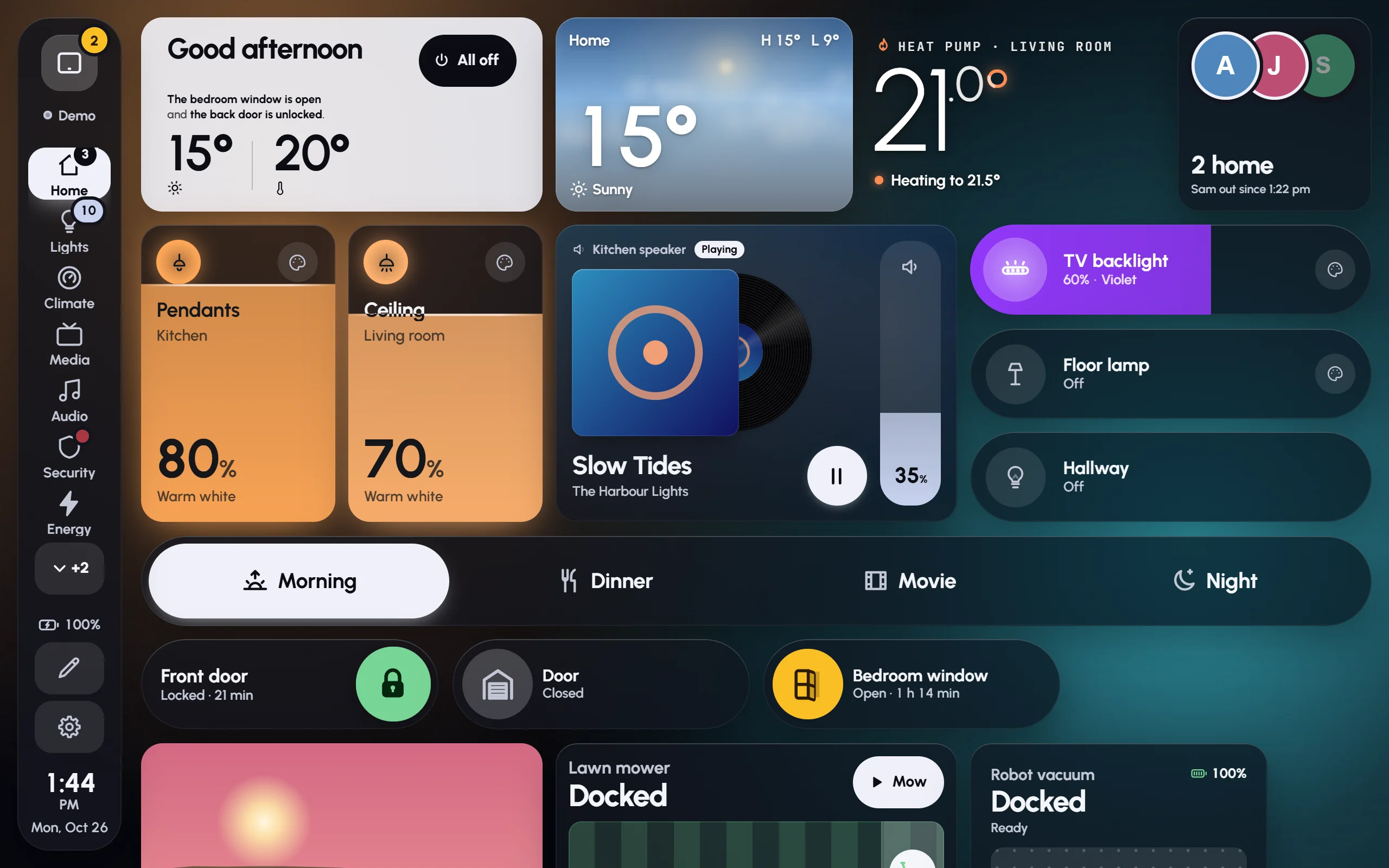
Aurora: white marks what’s on, and the background’s soft pools take their colours from the lights.
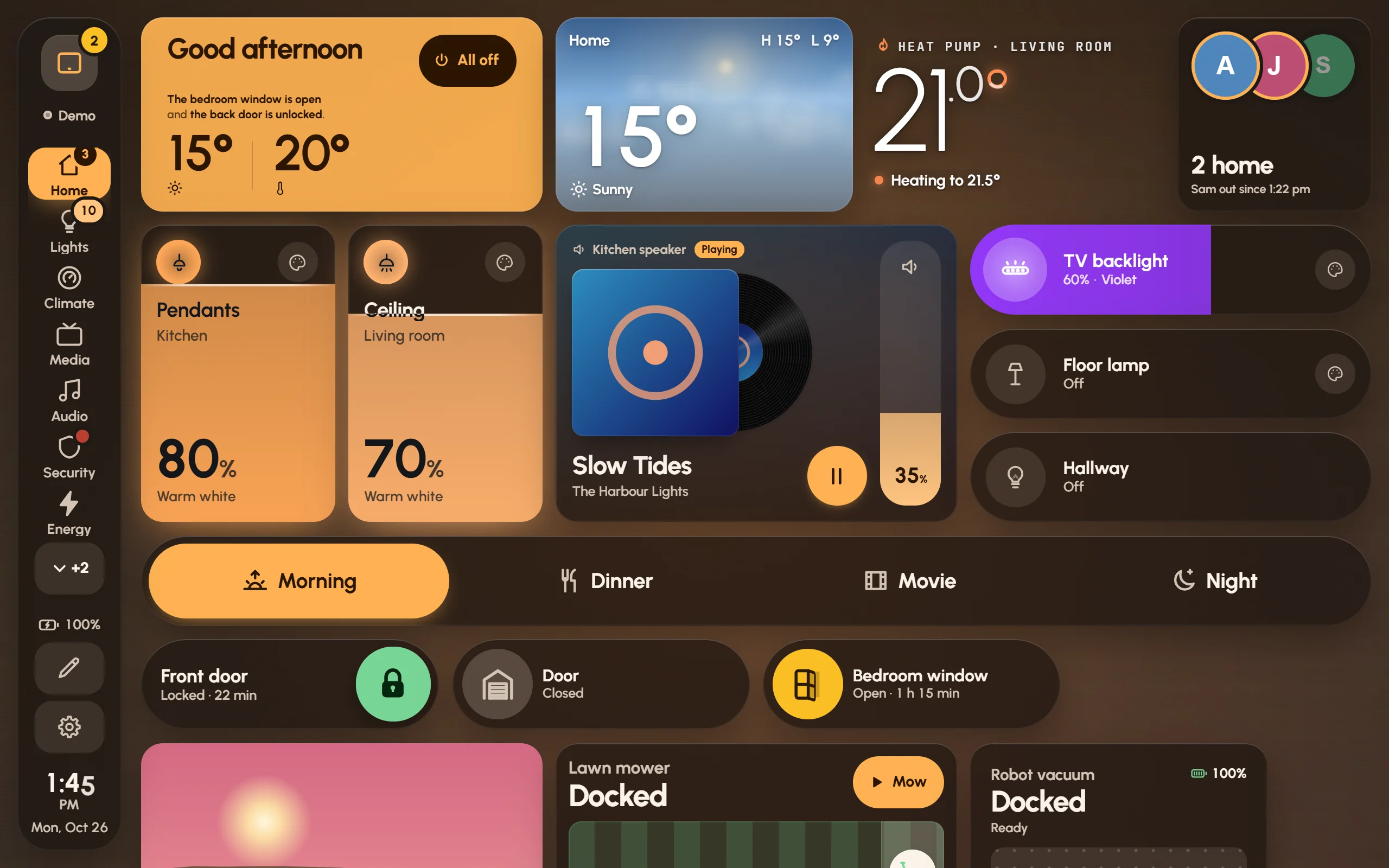
Ember: warm charcoal with amber.
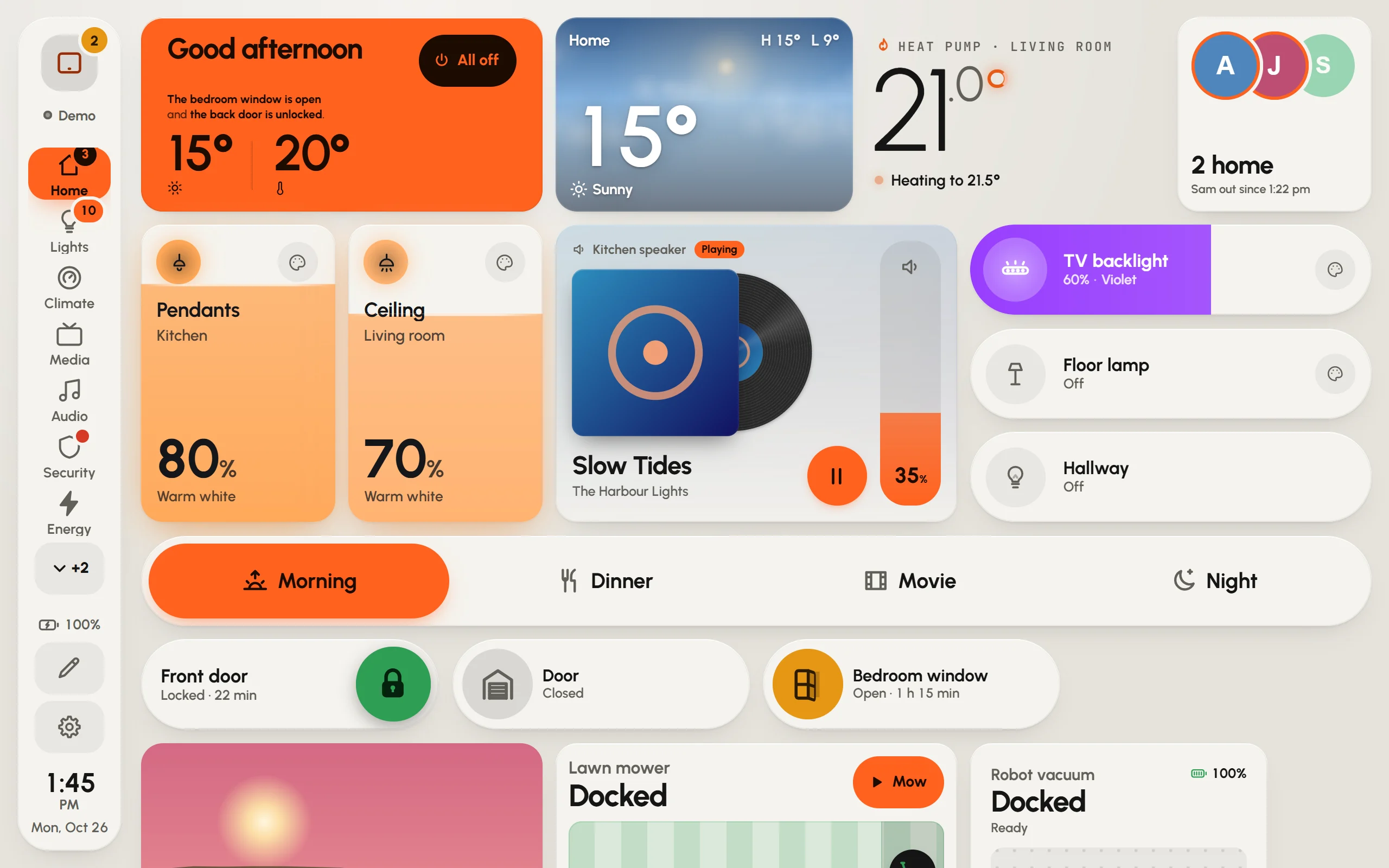
Faceplate, the light palette: off-white, black ink and signal orange.
Glass or solid
Under Material:
- Glass: cards are frosted panes over the background and take on its colours. The frost is worked out once rather than on every frame, so it stays smooth even on a modest tablet.
- Solid: opaque cards on a calm ground. The easiest to read from across a room, and the least work for a tablet.
Every card works in both. A screen with reduced effects (a Fire tablet starts that way) shows solid cards whatever the dashboard says; see Wall tablets.
Cards sets how much of the background shows through every card (Card transparency). One card can go further in its own settings, under Look.
Backgrounds
Under Background:
- Live sky: the sky outside, moving with the time and the weather.
- Still sky: the same sky, repainted as the light changes.
- Aurora: soft pools in the colours of the lights that are on.
- Gradient: the palette’s colours, slowly drifting.
- Plain: one calm colour.
- Photo: your own picture. Choose a photo takes one from this device and keeps it on this screen only; Use a link takes a picture’s address, which works on every screen.
Backgrounds show behind glass cards. With solid cards the page sits on the palette’s own ground instead, though the aurora still drifts behind them.
Dim the background darkens only what’s behind the cards, so they stand out on a busy photo or a bright sky.
Shape and size
- Card corners: from square to very round.
- Space between cards: Snug, Comfortable or Airy.
- Text size: bigger for reading from across the room, smaller to fit more in.
Motion
Motion sets how much moves on the dashboard:
- Lively: fans spin, doors swing, music bars dance, within what the screen can afford.
- Calm: the same, slower and softer. Night mode and a quiet spell with nobody about switch to this by themselves.
- Still: no looping motion at all. Changes still show, as quick fades.
Effects behind cards adds a quiet layer behind some cards: a warm glow while the heating runs, frost for the air conditioning, water for humidity, the album’s colours while music plays. Effect strength turns it down.
A single screen can ask for less, whatever the dashboard says: Settings › This screen › Motion on this screen.
Night mode
Settings › Behaviour › Night mode dims the whole screen at night, so the hallway isn’t lit up. It’s on by default, from 10 pm to 6:30 am.
- Under When, choose Sunset to sunrise or Set times. Sunset to sunrise needs Home Assistant’s Sun integration.
- For set times, fill in From and Until.
- Slide How dark at night until it’s right for the room.
Pop-ups and sheets dim along with the page, and card animations calm down. With Fully Kiosk’s JavaScript interface, Glow turns the tablet’s backlight down instead of laying a dark layer over the screen. The screensaver has a night look of its own; see Screensaver and night.