
The tablet can’t reach the port
http://<Home Assistant's IP>:8199/ doesn’t load on the tablet.
- Check the port is open. In Home Assistant, go to Settings › Apps › Glow Dashboard and open the Configuration tab. Under Network, the port field should say
8199. If it’s empty, the port is closed: type8199, press Save, and restart the app. - Check the address. Use Home Assistant’s IP address, which it shows under Settings › System › Network, and start it with
http://, nothttps://. - Check the network. The tablet must be on the same home network as Home Assistant, not a guest network.
- Check the app is running. Its Info tab shows whether it’s started, and the Log tab shows what it did.
The tablet asks to sign in
- On the app’s port, each tablet signs in once with Home Assistant, unless No sign-in is on. Press Connect to Home Assistant and sign in, preferably as a user of the tablet’s own. Or turn on No sign-in on the home network, with its warning in mind; see Wall tablets.
- No sign-in is on, but it still asks? Make sure you pressed Save and restarted the app afterwards, and open Glow by Home Assistant’s IP address: a name such as
homeassistant.localisn’t accepted without a sign-in. - It asks again every few months? A sign-in lapses after 90 days without use. Glow renews it every day while the screen is on. To stop it lapsing even when the tablet sits in a drawer, turn on Settings › Connection › Never sign this screen out.
- In the sidebar, Glow uses Home Assistant’s own sign-in. If Home Assistant asks you to sign in, do it there.
Changes don’t show on other screens
The screen you edited on is probably signed in as an ordinary user, not an administrator. Its changes wait on that screen.
- On that screen, go to Settings › Security.
- Under Saving shared dashboards, press Unlock editing (admin sign-in) and sign in as an administrator.
- Press Publish them now.
Or make the change again from a screen where you’re signed in as an administrator, and press Throw them away on the first one. More in Editing your dashboard.
Music doesn’t start, or a room is greyed
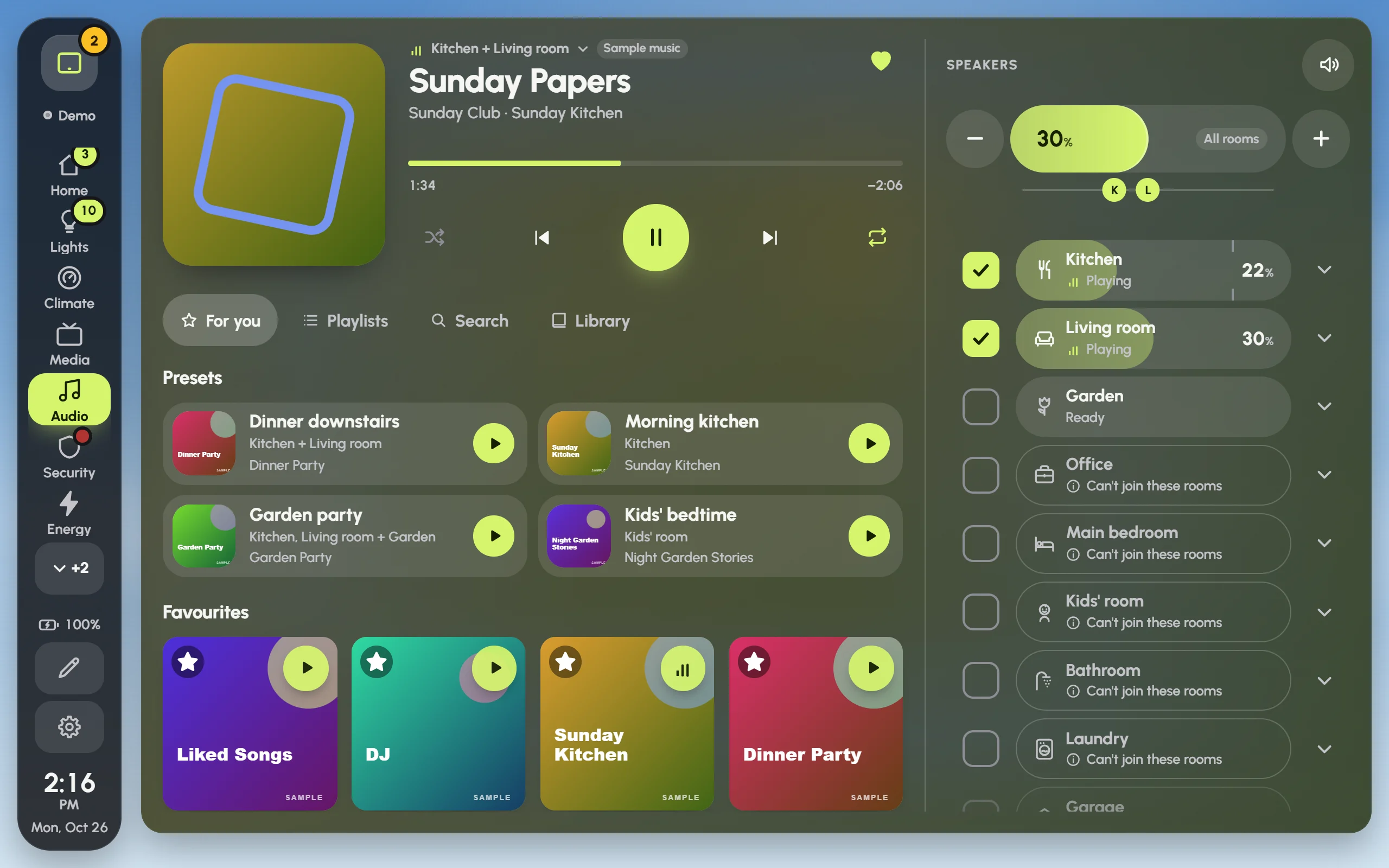
Rooms that can’t play with the ticked ones are greyed, with the reason under their name.
- Read the room’s reason. The room’s arrow opens the full reason and what to do about it.
- “Can’t join these rooms”: the room’s speaker is a different kind from the ticked ones, and Music Assistant only syncs speakers of one kind. Use Play only in the room’s details, or untick the others.
- Offline: the speaker isn’t answering. Check that it’s switched on and connected. (A sleeping Apple TV says “Asleep · wakes for music” instead, and does wake.)
- Not set up to play: the room has no way to play yet. Open Settings › Audio and check the room under Rooms.
- Not reachable: Spotify can’t see that speaker right now. Open Spotify on a phone and pick the speaker once, so it stays listed.
- Nothing plays at all: Settings › Audio says at the top whether music can start from here, or what’s missing and how to fix it. After adding speakers to Home Assistant, press Find speakers again.
- No Liked Songs or DJ: those need spotcast, from HACS.
- A room seems to stay quiet after you unticked it: while music plays, an unticked room is muted and kept in the group, so the music doesn’t restart. Glow lets it go at the next song, or when you pause or stop.
WLED isn’t live
When Glow can’t get a strip’s live colours, its card shows the colour Home Assistant reports instead. Open the strip’s details and look at the badge at the top; tap it to see why.
- Simulated: WLED’s own page is showing the strip’s live view. Close that page; the real colours come back by themselves.
- Simulated · can’t reach it: the app can’t reach the strip at the address Home Assistant has for it. Check the strip is switched on, and that Home Assistant can reach its network.
- Simulated · no address: Home Assistant doesn’t say where the strip is on the network, so there’s nothing to follow.
A tablet feels slow
Try these, roughly in this order:
- Solid cards. Leave Settings › This screen › Effects on this screen on Auto, and Glow switches to solid cards by itself when the tablet can’t keep up. Or choose Solid in Settings › Appearance.
- Instant page changes. Settings › This screen › When you change page › Instant.
- Less motion. Motion on this screen › Calm or Still.
- A quieter background. Still sky or Plain instead of Live sky.
- Fewer, larger cards. Keep each page to about a screenful.
- Fresh starts. Keep Reload every night on, or press Reload now.
- Memory. If the tablet runs short of memory, turn off Keep every page ready.
Performance overlay, in Settings › This screen, shows the frame rate in a corner, so you can see what helps.
Updating the app
When a new version is out, the app’s page in Settings › Apps shows Update. Press it. Your dashboards and settings are kept, because they live in Home Assistant, not in the app.
Each screen picks up the new version the next time it reloads: overnight, with Reload every night, or straight away with Settings › This screen › Reload now. Settings › About shows the version a screen is running.
Where your dashboards are kept
Your dashboards are saved in Home Assistant and shared by every screen. Settings › About › Your dashboards shows where, and when this screen last saved. Because they live in Home Assistant, a Home Assistant backup includes them.
For a copy of your own, use Settings › Backup:
- Download a backup: a file of your dashboards, pages, cards and looks. No passwords or tokens are in it. If nothing downloads on a tablet, do it from a phone or a computer.
- Bring one back: Choose a backup file, then Add them next to what you have, or Replace everything.
- Start over: replaces every dashboard with one new one, a starter filled from your home or a blank page. Screens keep their own settings. Download a backup first.
If saving fails, Saving at the top of Settings › Backup says so, with Try again.
Reporting a bug
Open an issue at github.com/dawsonjkraai/glow-dashboard/issues. It helps to include:
- Glow’s version and Home Assistant’s version, from Settings › About.
- The device and browser, from Settings › About › This device.
- What you did, what you expected, and what happened instead.
- A screenshot, if it shows the problem.
Issues are public. Before you post, take out anything private: your Home Assistant’s address, names, camera pictures and anything from the app’s log you’d rather keep to yourself.